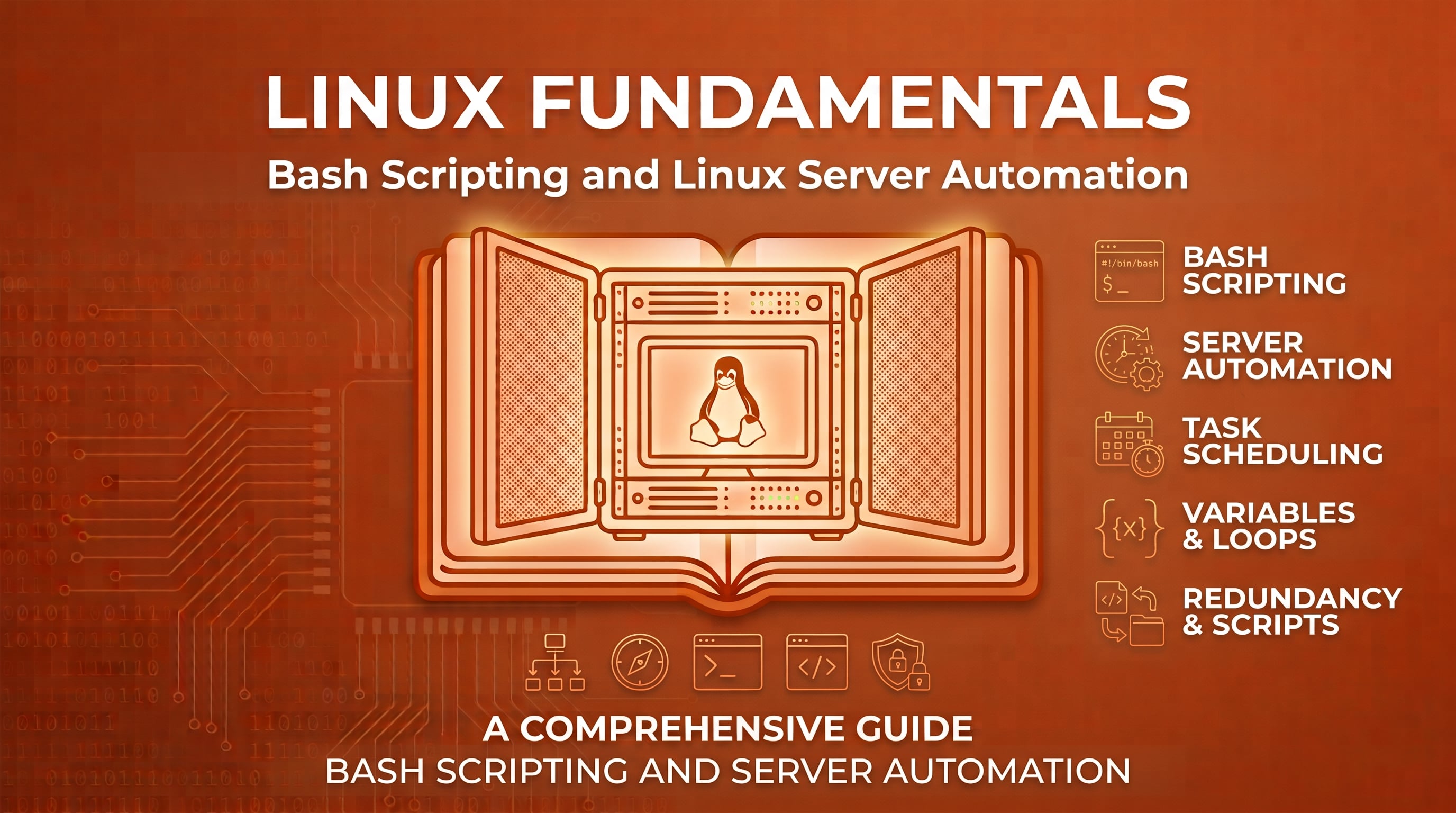
Linux administration often involves repeating the same operations: checking application health, validating configuration files, organizing backups, collecting system information, and preparing routine maintenance tasks.
Running these commands manually may be manageable at first. As the number of servers and responsibilities grows, repetitive work can then become time-consuming and more vulnerable to human error.
Bash scripting provides a way to turn command-line operations into reusable programs. Instead of remembering and executing every step individually, you can define a workflow once and run it whenever needed.
For cloud engineers, this is an important step toward consistent server administration and automation.
What Is Bash Scripting?
Bash is a command-line shell commonly available on Linux systems. In addition to executing commands interactively, it can interpret scripts containing variables, conditions, loops, functions, and other programming constructs.
A Bash script is a text file containing commands that Bash executes in sequence.
For example, create a file named system-report.sh:
#!/usr/bin/env bash

echo "System report"
echo "Generated at: $(date)"
echo "Hostname: $(hostname)"
echo "Disk usage:"
df -h
The first line is called a shebang. It identifies the interpreter used to execute the script. Using /usr/bin/env bash locates Bash through the environment's PATH.
The remaining lines print a report and execute commands that collect system information.
Save the file, then run it with:
bash system-report.sh
Bash executes each command in sequence, producing a report without requiring you to enter the commands individually.
This simple example demonstrates the central idea: a script makes a repeatable workflow easier to execute.
Variables: Storing Values for Reuse
Variables allow a script to store values and reuse them throughout its execution.
Consider a script that reports disk usage for a particular directory:
#!/usr/bin/env bash

target="/var/log"

echo "Checking disk usage for: $target"
du -sh "$target"
The variable target stores the directory being inspected.
In Bash, variable assignment does not use spaces around the equals(=) sign:
target="/var/log"
To access a variable, prefix its name with $ or use braces:
echo "$target"
echo "${target}"
Braces become particularly useful when a variable is followed immediately by other characters:
report_file="report"
echo "${report_file}_latest.txt"
This produces:
report_latest.txt
Why Quoting Matters
Consider this command:
target="/var/log/my application"
If the variable is used without quotes:
du -sh $target
Bash may split the value into separate arguments because it contains a space.
The safer form is:
du -sh "$target"
Quoting variables helps preserve their intended values and prevents accidental word splitting and pathname expansion.
For scripts that manipulate files, accept user input, or operate on configurable paths, correct quoting is essential.
Accepting Input Through Arguments
A reusable script should not require editing its source code every time the target changes.
Bash supports positional parameters that provide values passed when the script is executed.
For example:
#!/usr/bin/env bash

target="${1:-/var/log}"

echo "Checking: $target"
du -sh "$target"
Run it with a custom directory:
bash disk-usage.sh /opt/myapp
Here, $1 represents the first argument. The expression ${1:-/var/log} uses the supplied argument when it is non-empty; otherwise, it defaults to /var/log.
You can also provide a second argument:
bash disk-usage.sh /opt/myapp detailed
Inside the script, $2 would contain detailed.
Other useful positional parameters include:
$0— the script name as invoked$#— the number of positional arguments$@— all positional arguments, preserving their individual boundaries when quoted as"$@"
For example:
printf 'Argument: %s\n' "$@"
This prints each supplied argument on a separate line.
Arguments make scripts more flexible because the same logic can be applied to different directories, environments, or filenames.
Making Decisions With Conditionals
Automation often depends on a condition.
For example, a script might need to verify that a configuration file exists before attempting to process it.
#!/usr/bin/env bash

config_file="${1:-/etc/myapp/app.conf}"

if [[ -f "$config_file" ]]; then
    echo "Configuration file exists: $config_file"
else
    echo "Configuration file not found: $config_file" >&2
    exit 1
fi
The -f test checks whether the path refers to a regular file.
The if statement determines which branch to execute.
The command exit 1 terminates the script with a non-zero status, indicating failure. By convention, exit status 0 means success, while a non-zero status indicates an error or another unsuccessful outcome.
The example also redirects the error message to standard error using >&2. This separates diagnostic messages from normal output, which is useful when scripts are called by other programs or scheduled jobs.
Other useful file tests include:
| Test | Meaning |
|---|---|
-e |
The path exists |
-f |
The path is a regular file |
-d |
The path is a directory |
-r |
The path is readable |
-w |
The path is writable |
-x |
The path is executable |
Conditionals allow a script to validate its inputs and choose the appropriate action rather than blindly executing every command.
Repeating Tasks With Loops
A loop allows the same operation to run against multiple values.
Suppose you want to inspect disk usage for several directories:
#!/usr/bin/env bash

for directory in /var/log /opt /tmp; do
    if [[ -d "$directory" ]]; then
        printf '\nDisk usage for %s:\n' "$directory"
        du -sh "$directory"
    else
        printf 'Skipping missing directory: %s\n' "$directory" >&2
    fi
done
The for loop processes each directory in the list.
For every value, the script checks whether the directory exists before running du.
This pattern is useful when the same operation must be performed against several directories, environments, or other explicitly defined targets.
Processing a List From a File
A script may also need to process a list maintained separately from its code.
For example, directories.txt could contain:
/var/log
/opt/myapp
/tmp
A script can read the file line by line:
#!/usr/bin/env bash

list_file="${1:-directories.txt}"

if [[ ! -f "$list_file" ]]; then
    printf 'List file not found: %s\n' "$list_file" >&2
    exit 1
fi

while IFS= read -r directory || [[ -n "$directory" ]]; do
    [[ -z "$directory" ]] && continue

    if [[ -d "$directory" ]]; then
        du -sh "$directory"
    else
        printf 'Directory not found: %s\n' "$directory" >&2
    fi
done < "$list_file"
This example introduces several useful practices:
IFS=prevents leading and trailing whitespace from being trimmed by the read operation.read -rprevents backslashes from being interpreted as escape characters.The final condition handles a last line that does not end with a newline.
Empty lines are skipped.
Missing directories are reported without terminating the entire loop.
The list is kept separate from the script, making it easier to update the targets without modifying the automation logic.
Functions: Organizing Reusable Logic
As scripts grow, putting every command in one long sequence makes them harder to maintain.
Functions allow you to group related operations under meaningful names.
For example:
#!/usr/bin/env bash

show_disk_usage() {
    local target="$1"

    if [[ ! -d "$target" ]]; then
        printf 'Not a directory: %s\n' "$target" >&2
        return 1
    fi

    printf 'Disk usage for %s:\n' "$target"
    du -sh "$target"
}

show_disk_usage "/var/log"
show_disk_usage "/opt"
The function show_disk_usage encapsulates the validation and reporting logic.
The local keyword limits target to the function's scope, reducing the risk of accidentally changing variables used elsewhere in the script.
The return 1 statement reports failure from the function. The calling code can then decide whether to continue or stop.
Functions become increasingly useful when multiple scripts need the same validation, reporting, or processing logic.
Exit Codes and Error Handling
A script should not merely run commands. It should also make it possible to determine whether its operations succeeded.
Every command returns an exit status.
You can inspect the most recent command's status using $?:
some_command
status=$?

printf 'Exit status: %s\n' "$status"
A status of 0 conventionally indicates success. Non-zero values indicate failure or another unsuccessful result, depending on the command.
For example:
if curl --fail --silent --show-error \
    --output /dev/null \
    --connect-timeout 5 \
    https://example.com; then
    echo "Endpoint check succeeded"
else
    echo "Endpoint check failed" >&2
    exit 1
fi
This script uses curl to test an HTTP endpoint. The --fail option makes HTTP responses with status codes in the 400–599 range cause a failure exit status. The connection timeout limits how long the connection attempt can take, although the total request duration may still exceed that limit.
Using a command directly in an if condition is often clearer than running it and inspecting $? afterward.
Using set -euo pipefail
You may encounter this line near the beginning of Bash scripts:
set -euo pipefail
It enables three behaviors:
-e— exits on many unhandled command failures.-u— treats unset variables as errors in most expansions.-o— allows you to set a shell option by its name, such aspipefail, which makes a pipeline return a failure status if any command in it fails rather than reporting only the last command's status.
These settings can catch common mistakes, but they are not a substitute for understanding command exit statuses. In particular, set -e has exceptions involving conditionals, loops, and compound commands.
For that reason, explicitly handle important operations:
if ! some_critical_command; then
    printf 'The operation failed\n' >&2
    exit 1
fi
For destructive or production-critical automation, explicit error handling makes the intended behavior easier to review.
Building a Practical Automation Script
Consider a recurring task: generating a small report about a Linux server and saving it to a chosen location.
The script below combines variables, arguments, validation, functions, command substitution, and error handling.
Save it as server-report.sh:
#!/usr/bin/env bash

set -euo pipefail

output_dir="${1:-./reports}"
timestamp="$(date +%Y%m%d-%H%M%S)"
report_file="${output_dir}/server-report-${timestamp}.txt"

if ! mkdir -p -- "$output_dir"; then
    printf 'Could not create output directory: %s\n' "$output_dir" >&2
    exit 1
fi

write_report() {
    {
        printf 'Server Report\n'
        printf 'Generated: %s\n' "$(date)"
        printf 'Hostname: %s\n' "$(hostname)"
        printf 'Operating System:\n'
        cat /etc/os-release
        printf '\nFilesystem Usage:\n'
        df -h
        printf '\nMemory Information:\n'
        free -h
    } > "$report_file"
}

if ! write_report; then
    printf 'Failed to generate the report\n' >&2
    exit 1
fi

printf 'Report saved to: %s\n' "$report_file"
Run it:
bash server-report.sh
Or specify a different output directory:
bash server-report.sh /tmp/server-reports
The script creates a timestamped report containing the hostname, operating system information, filesystem usage, and memory information.
The timestamp helps prevent a new run from overwriting an earlier report.
Running Scripts Reliably
Once a script works, it needs to be executed in a predictable way.
Executing a Script Directly
You can execute a script through Bash:
bash server-report.sh
Alternatively, you can make it executable:
chmod u+x server-report.sh
Then execute it directly:
./server-report.sh
The second approach relies on the shebang to identify the interpreter.
Scheduling Scripts With Cron
For a task that must run regularly, cron can execute the script on a schedule.
For example, this entry runs a report script every day at 2:00 AM:
0 2 * * * /opt/myapp/scripts/server-report.sh /var/reports
The script should use appropriate absolute paths where necessary, because scheduled jobs may run with a different working directory and a smaller environment than an interactive shell.
Also consider where standard output and errors should go. Cron configurations vary, but output may be emailed or handled by the system's scheduling environment.
For important jobs, explicitly arrange logging and monitoring so failures do not go unnoticed.
Avoiding Overlapping Jobs
If a script takes longer to run than the interval between scheduled executions, multiple instances may overlap.
That can be dangerous for jobs that modify the same files, rotate data, or perform backups.
One common approach on systems that provide flock is to use a lock:
flock -n /tmp/server-report.lock \
    /opt/myapp/scripts/server-report.sh /var/reports
The -n option causes the command to fail immediately if the lock cannot be acquired.
Choose a lock-file location and locking strategy appropriate to the system. Locking helps prevent overlapping executions only when competing runs use the same lock consistently.
Best Practices for Bash Automation
A script that works once is not necessarily safe to run unattended.
Keep these practices in mind when writing automation for real servers.
Validate Inputs
Check that required arguments are present and that paths or values are appropriate before acting on them.
Quote Variables
Prefer "$variable" and "$@" when passing values to commands. This avoids many common word-splitting and pathname-expansion problems.
Use Explicit Error Handling
Check the result of important operations. Do not assume that a command succeeded because the script continued running.
Avoid Unnecessary Privileges
Do not run an entire script with elevated privileges simply because one operation requires them. Use the minimum privileges needed for the task.
Make Destructive Actions Deliberate
Commands that delete, overwrite, rotate, or modify production data deserve additional validation. Test against non-production targets first, and use dry-run modes when the relevant command supports them.
Make Scripts Observable
Log meaningful milestones and errors. Include enough context to identify which operation failed without exposing passwords, tokens, private keys, or other secrets.
Make Repeated Runs Safe
Where possible, design scripts so that running them twice does not cause unintended damage. This property is often called idempotency: repeating an operation leaves the system in the same intended state rather than continually creating unwanted changes.
Test Before Scheduling
Run scripts manually with representative inputs, test failure scenarios, and confirm the output before allowing a scheduled job to run unattended.
Bash Automation and Cloud Engineering
Bash scripting is useful for routine Linux operations, but it is only one layer of automation in a cloud engineering workflow.
For example, a Bash script might:
Generate diagnostic reports from a Linux server.
Validate configuration files before deployment.
Run repeatable maintenance tasks.
Check the response from an application endpoint.
Prepare files for a backup process.
Collect information needed for troubleshooting.
These tasks reduce repetitive manual work and help make operational procedures consistent.
However, Bash scripts running on a server are not a replacement for infrastructure as code. Tools such as AWS CloudFormation or Terraform are designed to manage infrastructure resources and their desired configurations, while Bash is often used to automate operations within an operating system or coordinate command-line tasks.
Understanding this distinction helps you choose the right tool for each problem.
Conclusion
Bash scripting turns individual Linux commands into repeatable workflows. Variables and arguments make scripts configurable, conditionals and loops control execution, functions organize logic, and exit codes help identify failures.
The most valuable scripts are not necessarily the longest or most sophisticated. They are the ones that solve a real operational problem, behave predictably, and make routine work safer and easier to repeat.
For cloud engineers, these skills provide a practical foundation for server automation and prepare you to work with more advanced automation tools as your infrastructure responsibilities grow.
This brings us to the end of the series. Shalom.
About the author
- I'm a Software Engineer who loves to write about technology. Currently writing about cloud technology.
Comments
Join the discussionNo comments yet. Be the first to comment.
Linux Fundamentals
Linux Fundamentals is a practical guide to Linux for cloud engineers. This series covers the core skills required to work confidently with Linux servers, from understanding the filesystem and navigating the command line to managing users, permissions, processes, services, networking, and automation. Each article builds on the previous one without unnecessary repetition, providing a solid foundation for operating and troubleshooting Linux-based cloud infrastructure.